# Module Styles
This is a recent and pretty significant change to buildy.
Let's say you need to create a few testimonials. The layout requires that the testimonials show a persons name, their position and how many stars they have rated.
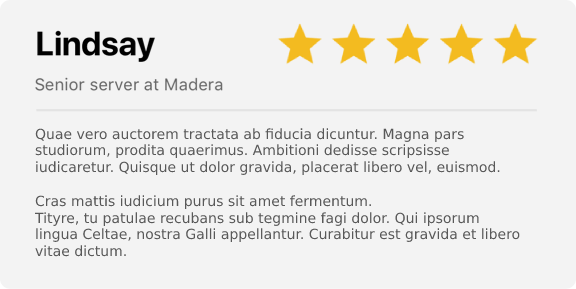
# Add module styles under BMCB Settings
First you need to decide what module would be the best "base" for this. Do we need to add any images or buttons? If not then we can ignore the blurb module. For this, the "text" or "custom" modules will be best suited. In this example we are just going to use a custom module (they are identical to text, just less confusing for some clients).
Navigate to BMCB Settings options, and scroll down to the module styles section. Click on "Add Row" for the Custom Styles. Here we can add all those custom fields the design required.
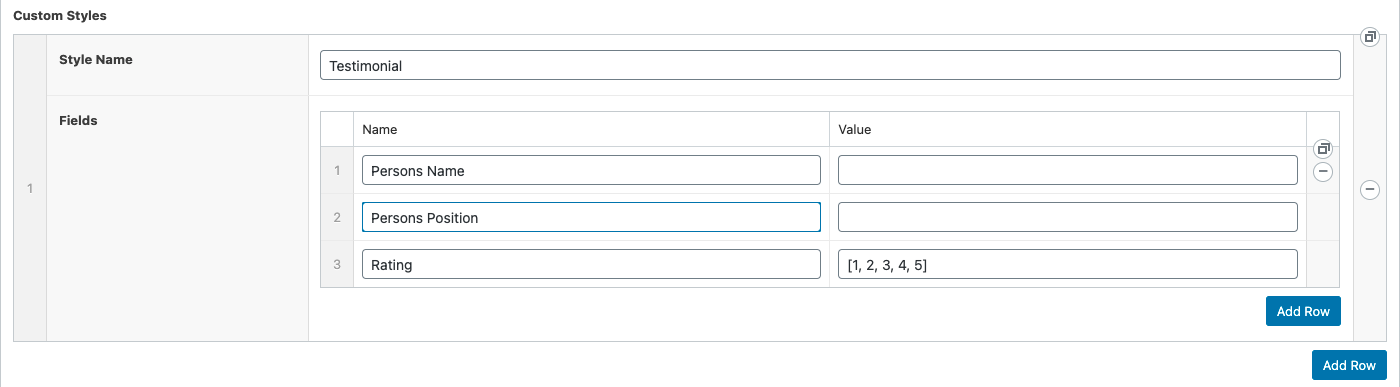
You'll notice we add the name of the field we want e.g "Persons Name" and leave the value empty, if you set a value here, every module will have that as the default. In this case everyones name will be different so we leave it empty.
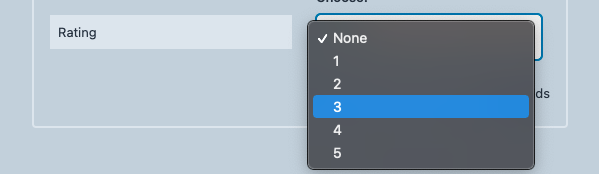
Another thing you'll notice is the "Rating" has a value of [1, 2, 3, 4, 5]. This is an array-like structure that will automatically convert into a dropdown menu with each comma-separated item as an option. We'll show an example of this down a little further.
# Add the module into a page/post
Now in any page, you can add the "custom module" and inside the "design" tab you'll notice a new dropdown called "Module Style". The "Testimonial" option should be there for you.
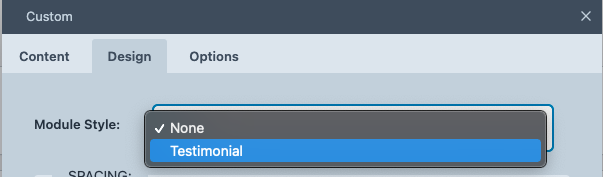
Click that and back in the "content" tab you'll now see the custom fields you created:
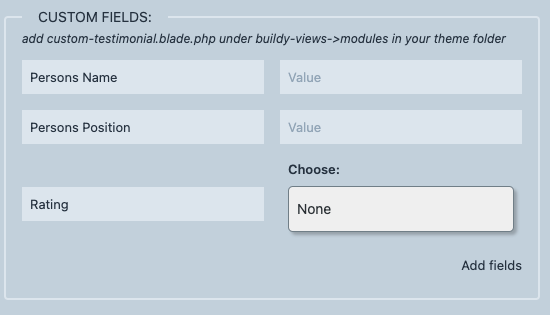
And as you can see the dropdown we talked about earlier:
No you can fill in the fields and we'll run through how to get those displaying on the front end in This section
← Buttons